On my work computer (Ubuntu 24.04) I had Microsoft Teams installed using flatpak, which is a wrapper around the webapp executed in chromium. As I have two accounts (one for my company and one for my client), I would like to be able to have both accounts open at the same time. I solved this issue by running a second instance of the webapp directly in chromium (not my main browser), in app mode (using the --app switch).
The other day, I realized there is a much cleaner and much more consistent way of doing this, installing it as a Progressive Web Applications (PWAs) with chromium.
PWAs
PWAs are web apps that provide a native feel, providing features such as offline access and push notifications. PWAs use standard web technologies (HTML, CSS and JavaScript).
Microsoft Teams on chromium
Go to Microsoft Teams Web and login. Clicking on the three dots in the top-right corner you should see a drop down menu, as in the picture.
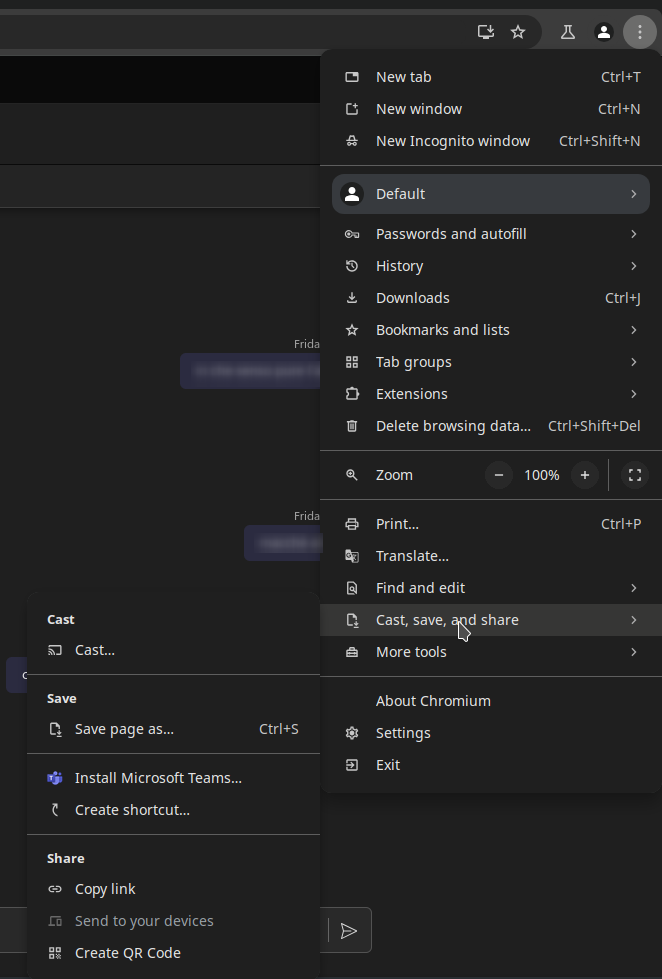
Click on “Install Microsoft Teams”.
Now, you will see that a desktop entry is created under ~/.local/share/applications. This effectively means that you will be able to search for “Microsoft Teams” in the application menu. If you open the desktop entry file using a text editor, you will see that the entry is nothing more than chromium wrapping a PWA.
#!/usr/bin/env xdg-open
[Desktop Entry]
Version=1.0
Terminal=false
Type=Application
Name=Microsoft Teams
Exec=/snap/bin/chromium --profile-directory=Default --app-id=cifhbcnohmdccbgoicgdjpfamggdegmo
Icon=chrome-cifhbcnohmdccbgoicgdjpfamggdegmo-Default
StartupWMClass=crx_cifhbcnohmdccbgoicgdjpfamggdegmo
Installing a second instance
To run two instances with different profiles, it is necessary to use two different browser profile, otherwise it won’t work.
After having switched to another profile (create one if you need to), do the same process over again, installing another PWA. After this you would have two applications called “Microsoft Teams”. Opening the desktop entry with a text editor, you can simply modify their titles, so that you will be able to distinguish them.
Uninstalling
If you wish to uninstall it, you can do so by launching the app and click on the three dots in the top-right corner.
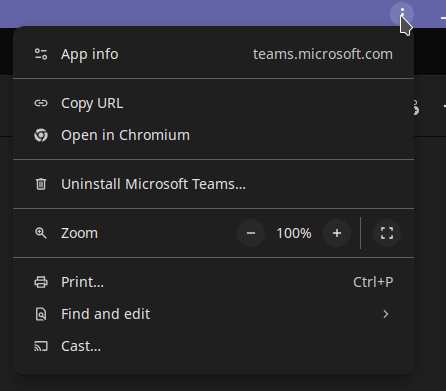
Wrapping up
Adopting this solution, I fixed a couple of issues that I had with my flatpak package, such as problems when sharing the screen and inconsistent notifications. This way it is all handled consistently through chromium.